
How do I remove extra spaces in Excel? How to delete extra spaces in texts?
These are questions a lot of people like you are asking and we have the solution!
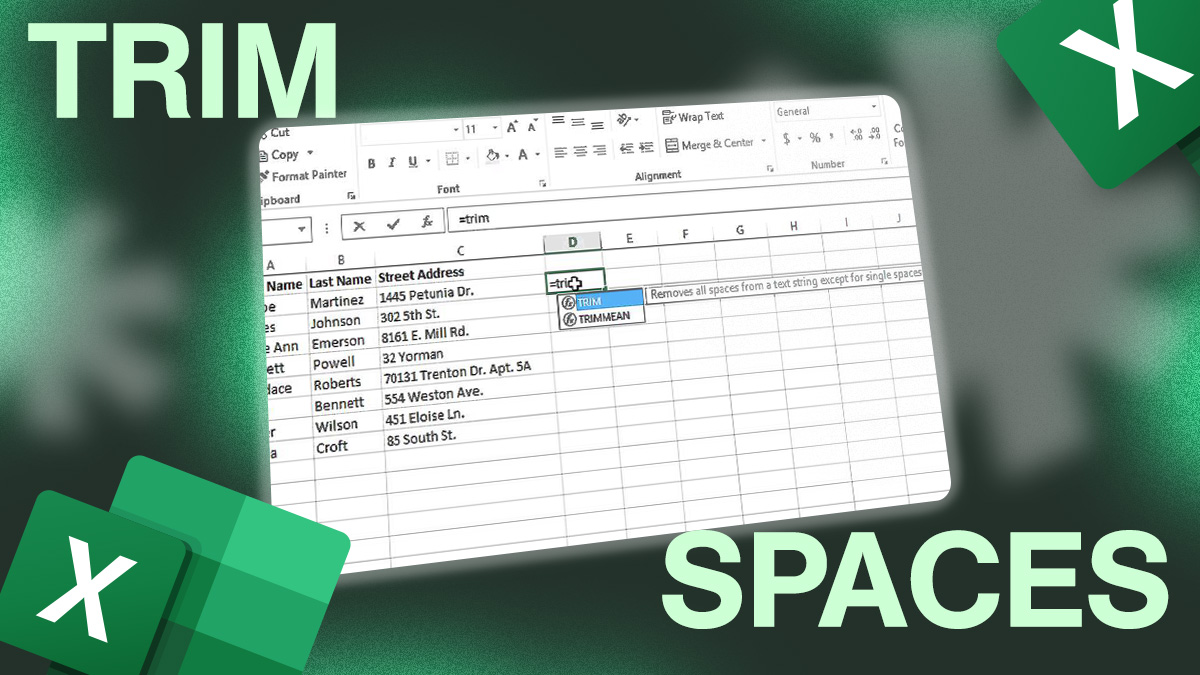
Indeed, you can delete extra spaces using this Excel formula: TRIM. The TRIM function deletes all spaces from text except for single ones between words.
TRIM formula
In Excel and in Google Sheets, the TRIM formula is =TRIM(text).
text can be a cell reference containing text or a text value between quotation marks (“”).
How to use TRIM in Excel
Great news, TRIM is one of the easiest functions to use in Excel! Check the examples below to learn how to use it:
If you want to enter text directly in the formula, just enter your text within quotations marks (“”).
For example, =TRIM(“Do you know how to use the TRIM function in Excel?”) will give you this result: Do you know how to use the TRIM function in Excel?
Now, you know how to use the TRIM function in Excel and how to remove extra spaces!